Introduction
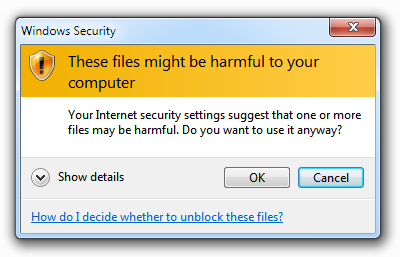
If you’ve ever gotten that irritating popup when your working on a network attached resource, this guide may help you fix it
Explanation
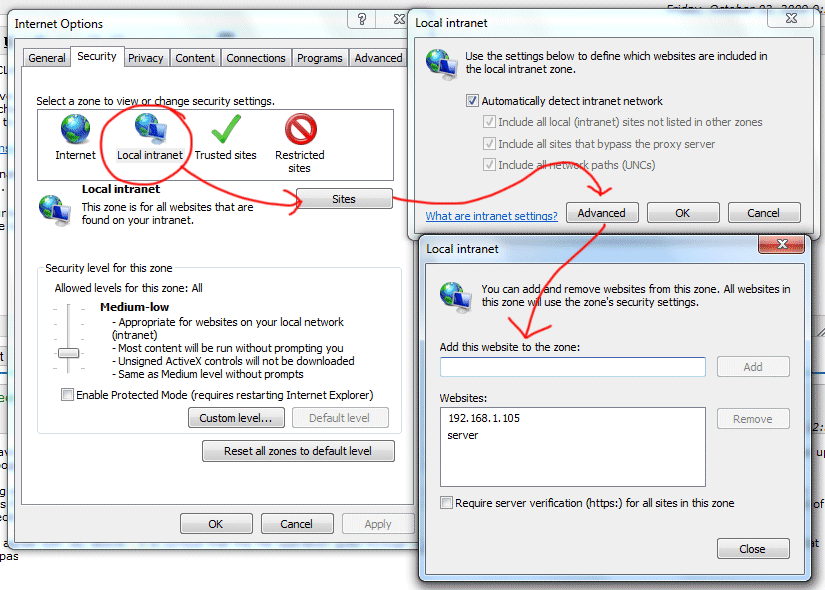
What we need to do is to add the URLs or IPs of the devices we’re accessing in the list of Local Network Sites. This will make Windows trust the remote resource and not throw this popup in our faces every time we try to move a file. To do this we will have to add the IPs or URLs into our “Internet Options” window.
Procedure
- Click the
Startbutton (Windows key) → Open upControl Panel→ Go toInternet Options - Go to the
Securitytab. - Select
Local Intranet - Click on the Sites button.
- Click the Advanced button.
- Enter the IP Address of the other machine or server (wildcards are allowed) into the
Add this website to the zone:and click Add - Click Close, then OK, then OK again.
- Disconnect, and reconnect the network drive
It might not work for you. It worked for me but it’s a hazzle if you have loads of destinations you interact with and have to add a whole bunch to this list. It’s really irritating that Windows can’t properly detect LAN IPs as being inside the LAN and treating them as such. But alas, it won’t and instead give us this irritating (and pointless) warning about “dangerous” files. People will, most likely, just click through it anyways.
Sidenotes
- If you are using a DNS name (i.e. FQDN) to map the network drive, adding the IP address of the server to the zone will not work. You will need to add the DNS name (i.e. FQDN), and vice-versa.
- When adding an IP address, you can use wildcards like so: 192.168.1.*
- When adding a DNS name (i.e. FQDN), you can use wildcards like so: *.example.com
Refrences
- Disable “These files might be harmful to your computer” warning? by CentaurusDJ on SuperUser.com - https://superuser.com/questions/149056/disable-these-files-might-be-harmful-to-your-computer-warning